
How to connect Magento 1 with Rfmcube
In this guide we will explain how to synchronize Rfmcube with Magento 1 by creating a role and a user on Magento.
1. Create a role
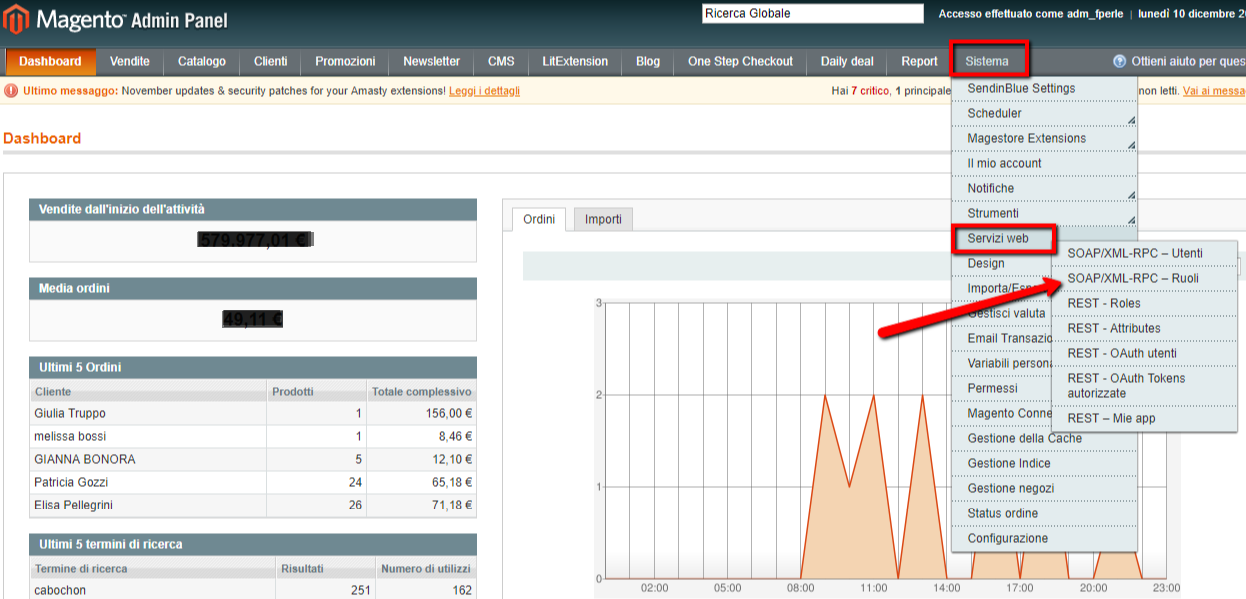
a. From the Magento Dashboard got to: System --> Web Services --> SOAP/XML-RPC - Roles
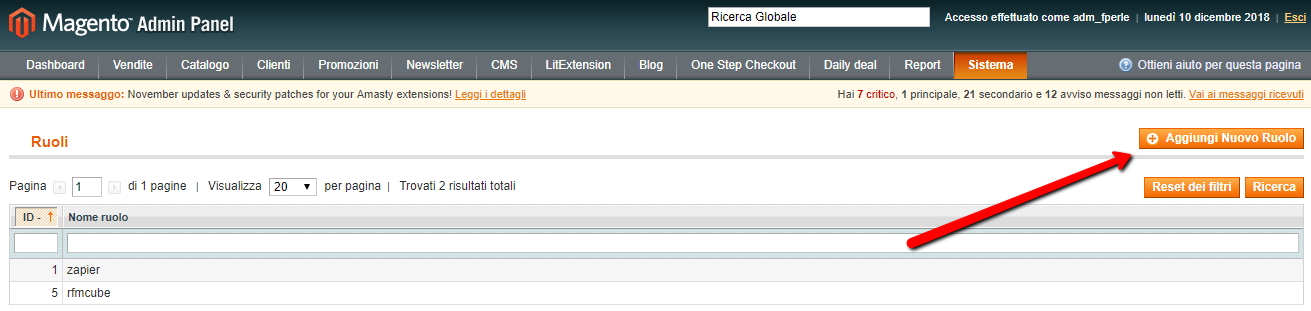
b. Click on Add new role
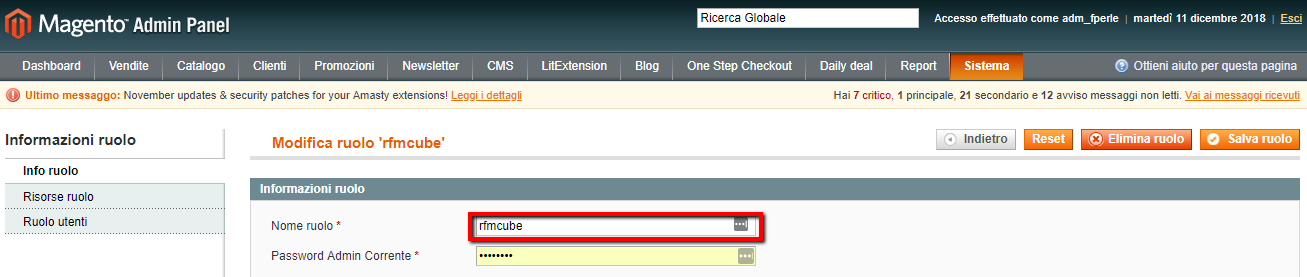
c. Insertrfmcube as the name of the role
d. Click on Resources Role --> Access to resources: SelectAll --> Click onSave role

2. Create a user
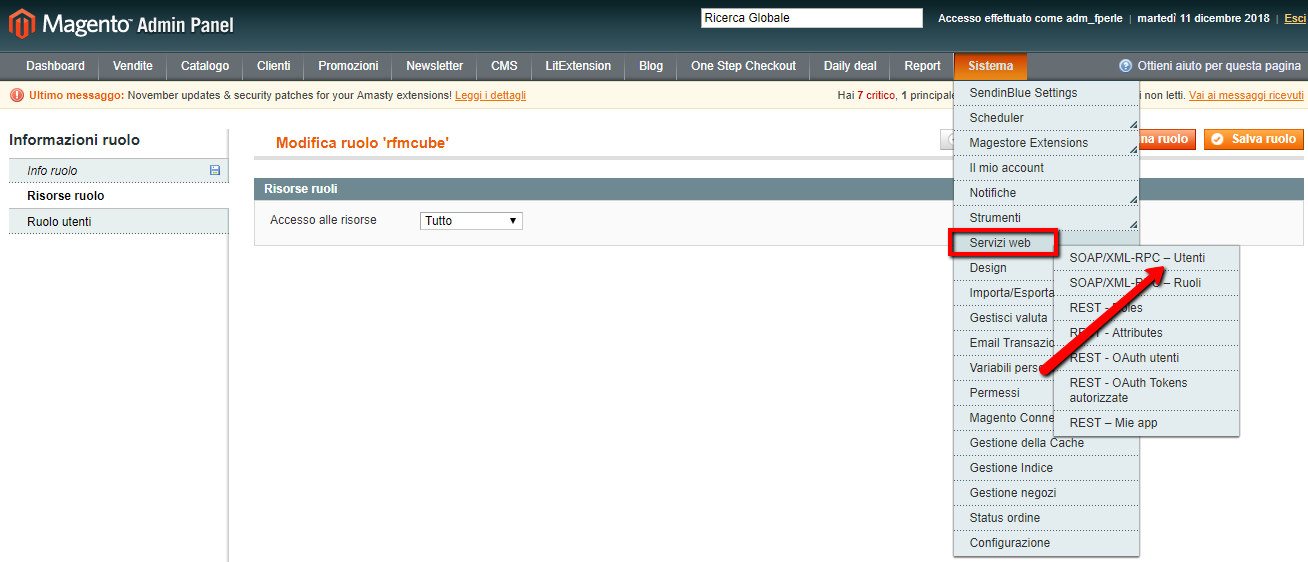
a. From the dashboard go to: System--> Web Services --> SOAP/XML-RPC - Users
b. Click on Add New User

c. Fill in the fields with the data you choose, enter an alpha-numeric string in the API key making it as complicated as possible --> Click on Save User

Username and API Key are the information you need to share with RFMCube.
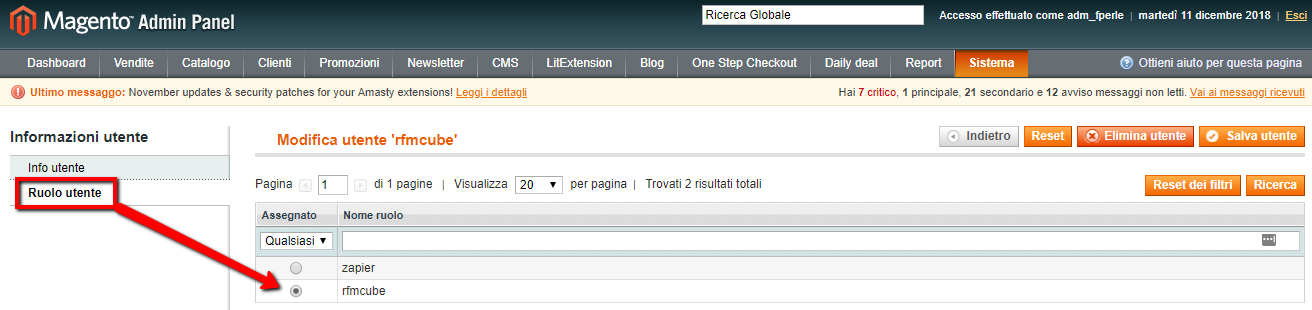
3. Add user to the role
a. Click onUser role --> Select the role: rfmcube created in step 1 --> Click onSave User
Go to the Rfmcube dashboard under Settings --> Magento --> API and enter your Username and API Key.
Done!
Rfmcube will automatically begin importing the customer history. Depending on the history volume, it can take from 30 minutes to 12 hours after which you will receive a notification email with access to your new dashboard!